
Your A-Z Guide to Building a Shopify Store for Beginners
Summary
- Shopify is a beginner-friendly e-commerce platform that requires no coding skills.
- This guide covers 10 detailed steps, from account creation to website launch.
- A professional Theme helps boost credibility and conversion rates.
- The process of uploading products and setting up payment and shipping needs to be carefully configured.
- Once all steps are complete, you will have a ready-to-operate Shopify website.
Creating a Shopify Account and Small Tips
Shopify is the optimal launchpad for newcomers to the e-commerce world to begin their online business journey. With a user-friendly interface and powerful features, this platform is particularly suitable because it doesn't require any programming knowledge.
To get started, simply follow these steps:
- Visit the Shopify.com homepage.
- Enter your email address and click the "Start Free Trial" button.
- Set up your password and enter your desired store name.
- Answer a few short survey questions for Shopify to optimize the admin interface for you.
Small tips:
- Choose a short, easy-to-remember store name with long-term brand potential.
- Don't be too stressed about the domain name at this stage; you can always purchase and connect a custom domain later to enhance professionalism.
Choosing and Customizing Your Theme
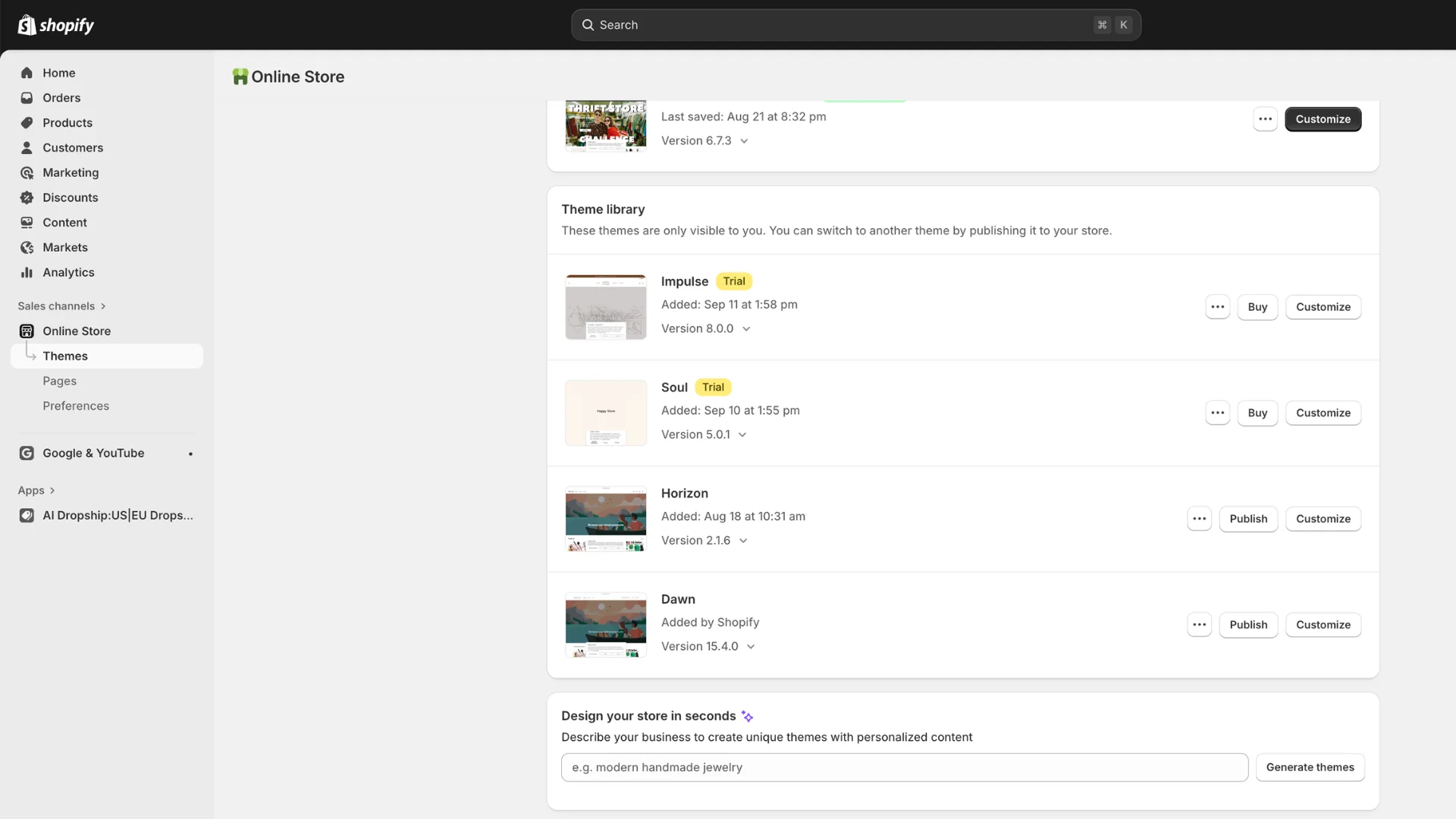 The theme is the face of your online store, directly influencing customer trust and conversion rates. While Shopify offers free themes (like Dawn), investing in a Premium Theme is a strategic move to make your website look more professional.
To install and customize your theme:
- In the Shopify admin panel, go to Online Store → Themes.
- Browse reputable theme marketplaces (like Kalles) to find templates with high conversion rates specifically optimized for various industries (Fashion, Cosmetics, Electronics, etc.).
- Upload the theme's zip file to the system and click Customize to intuitively change colors, fonts, and layout to match your brand identity.
Pro advice for beginners:
- Save on app costs: Free themes are often very basic and require many paid third-party apps for features like Product Filters, Wishlists, or Discount Code Popups.
- All-in-one solution: Premium themes (e.g., Ella Theme) come with all supplementary features integrated, saving you hundreds of dollars annually.
- Industry-specific optimization: A specialized theme can help increase conversion rates by up to 30% compared to generic free themes.
Uploading Products to Your Store
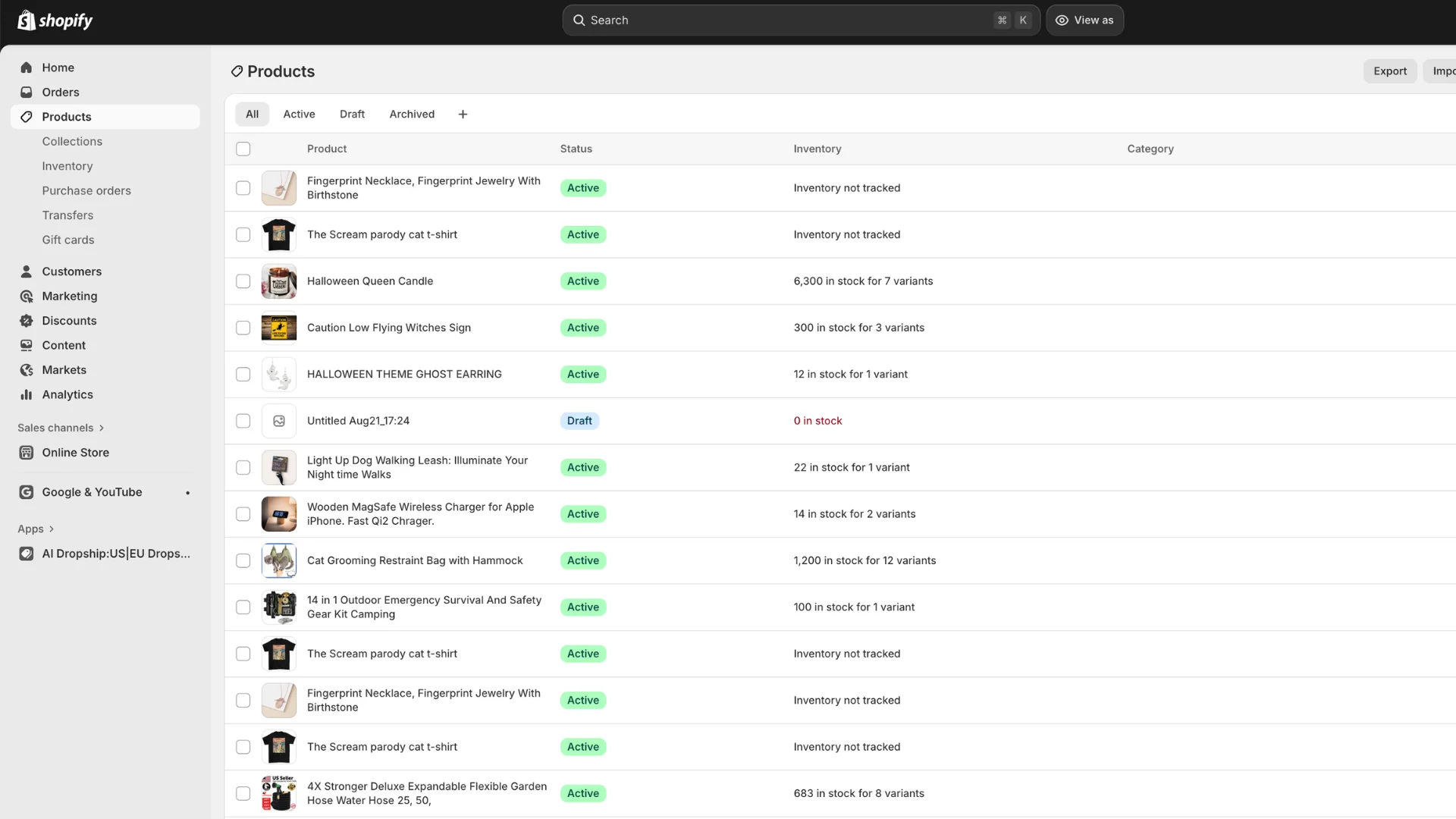 Products are at the heart of all online business activities. Uploading product information in detail and attractively is crucial.
Go to Products → Add Product and fill in the following core information fields:
- Title: A clear, easy-to-understand product name containing main keywords for SEO optimization.
- Description: Write engaging content, naturally embedding SEO keywords. Focus on selling benefits rather than listing dry features.
- Media (Images/Videos): Upload high-quality images. Prioritize real-life photos or lifestyle shots over plain white background images.
- Pricing: Enter the actual selling price and the compare-at price if the product is on promotion.
- Inventory: Enable inventory tracking if you need to manage stock quantities.
- Variants: Add options for size, color, or material to meet diverse customer needs.
Optimization Tip: Don't forget to add Alt text to all product images. This helps Google Images easily identify and suggest your products when users search.
Setting Up the Payment System
 To collect money from customers, you need to connect your store with payment gateways suitable for your target market.
Go to Settings → Payments to choose:
- Shopify Payments: The most optimal and recommended option if your country/region of business is supported.
- PayPal / Stripe: Popular international payment gateways for foreign customers.
- Local payment gateways: Integrate popular local payment solutions/e-wallets in your region.
Important note: Always perform a test order before publishing your website to ensure the payment flow works smoothly without errors.
Configuring Shipping Policies
 Clear and reasonable shipping policies help customers feel secure when shopping. Correctly setting up delivery methods is crucial.
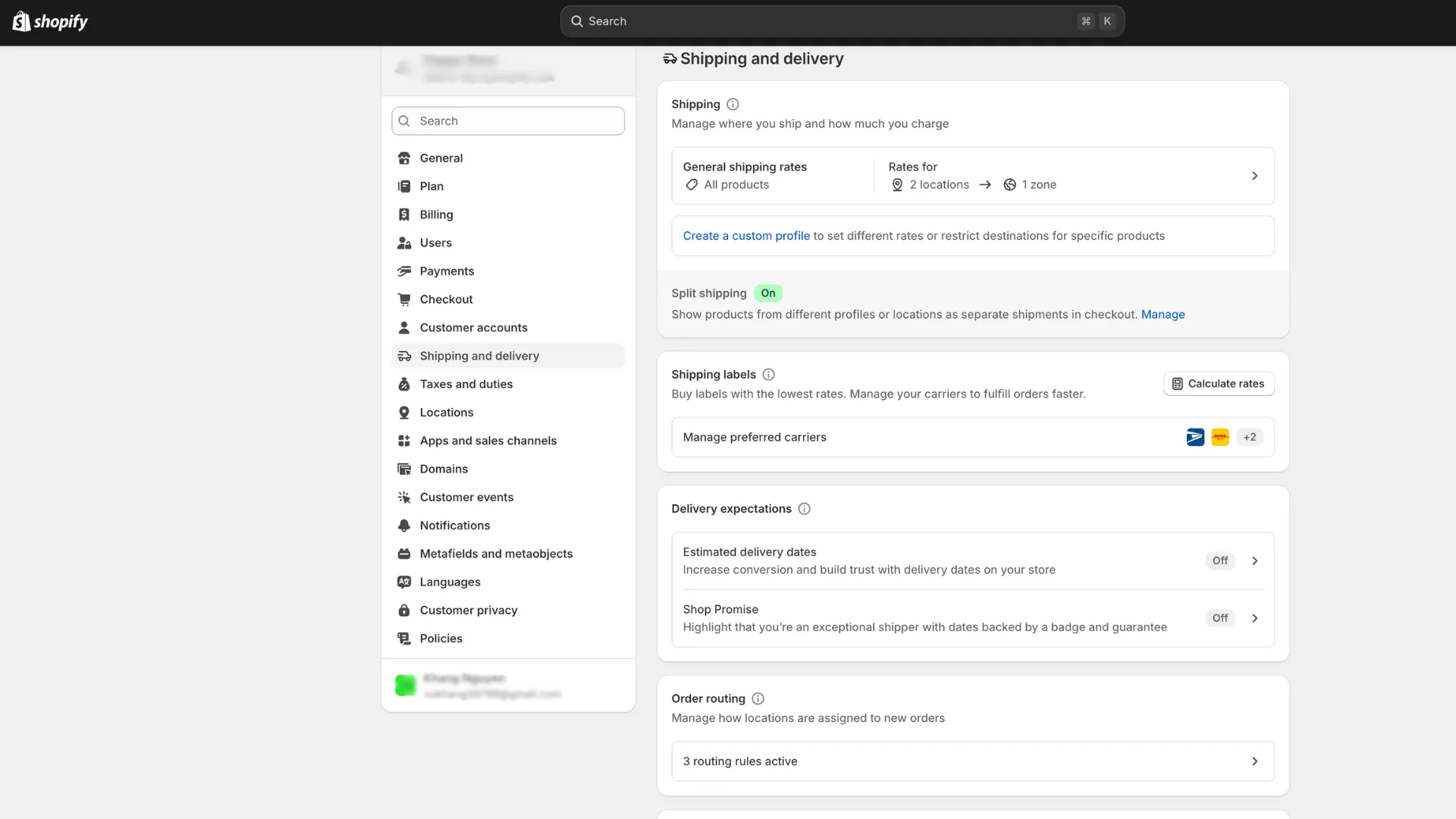
Go to Settings → Shipping and Delivery to configure:
- Create separate Shipping zones for domestic and international markets.
- Apply various pricing methods: Flat rate, Free shipping, or automatic calculation based on partner carriers.
- Update packaging specifications (box dimensions, weight) for the system to accurately calculate shipping costs.
Marketing Strategy: Implement a Freeship policy for orders reaching a minimum value (e.g., Orders from $50) to encourage customers to buy more, thereby increasing the Average Order Value (AOV).
Buying and Connecting a Domain Name
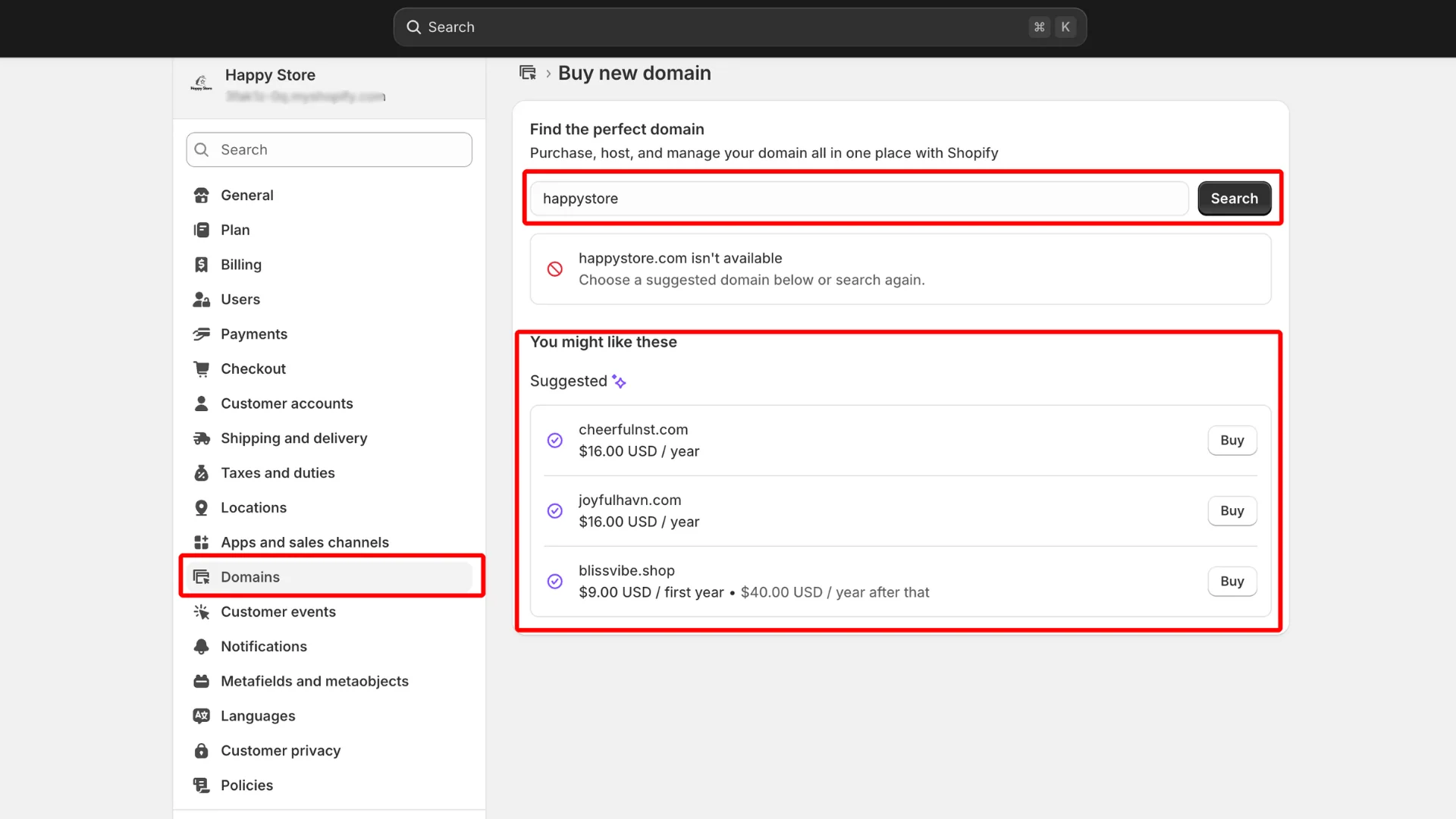
 A professional domain name is a key factor in increasing credibility and brand positioning. Shopify's default domain name does not convey professionalism as well as your own custom domain.
To connect a domain name:
- Go to Settings → Domains.
- You can choose to purchase a new domain directly through Shopify or connect an existing domain you've bought from external providers. Shopify's system will automatically configure and activate a free SSL security certificate for you.
Setting Up Legal Pages & Policies
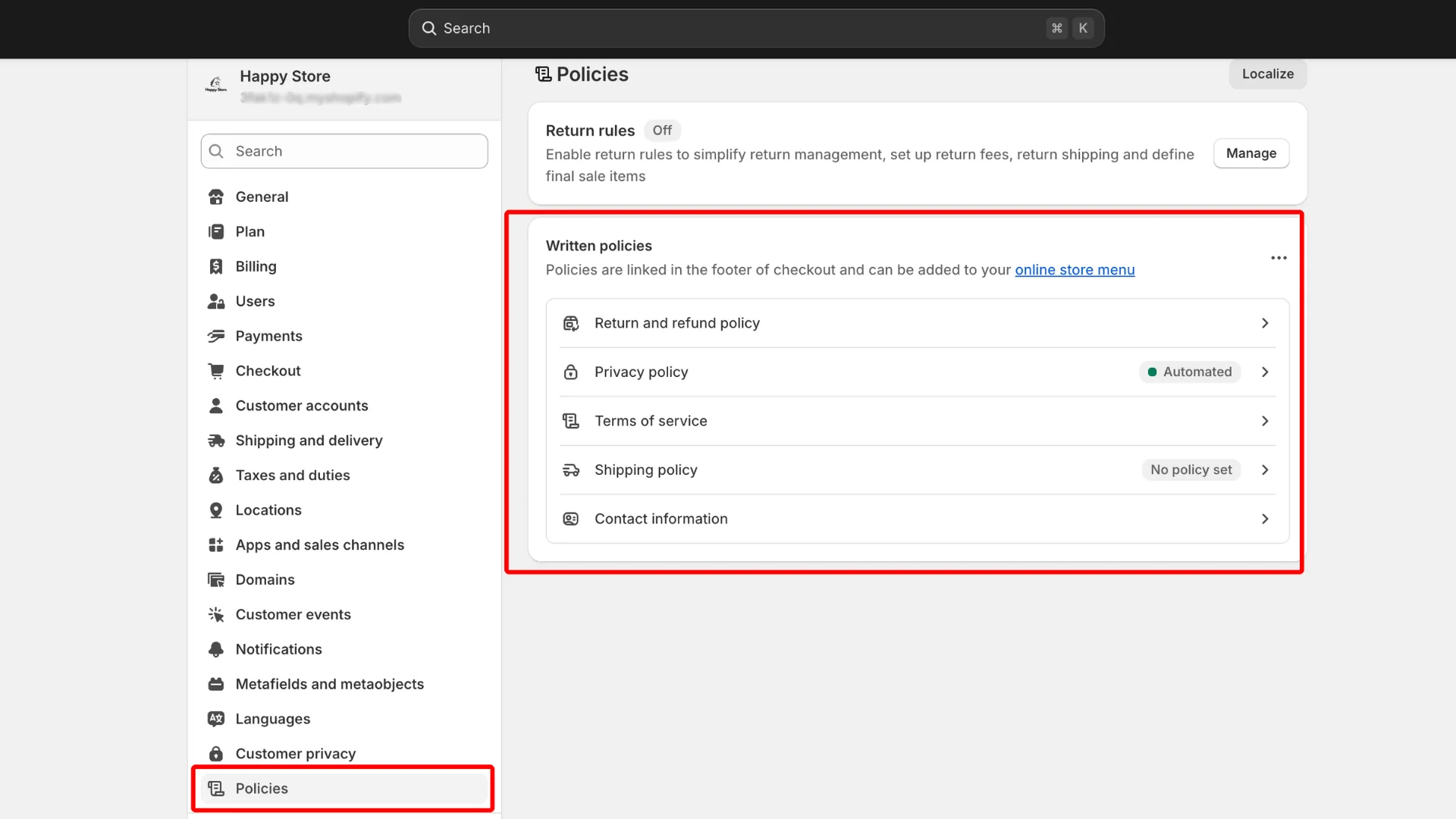
Legal pages ensure reliability and compliance with legal regulations for your store. Shopify helps you quickly generate standard policy templates.
Go to Settings → Policies and create the following pages:
- Privacy Policy.
- Refund Policy.
- Terms & Conditions.
- Shipping Policy.
Note: Proactively edit the content of these terms to be most suitable for your brand's operating model and the legal regulations in your business area.
Installing Essential Apps
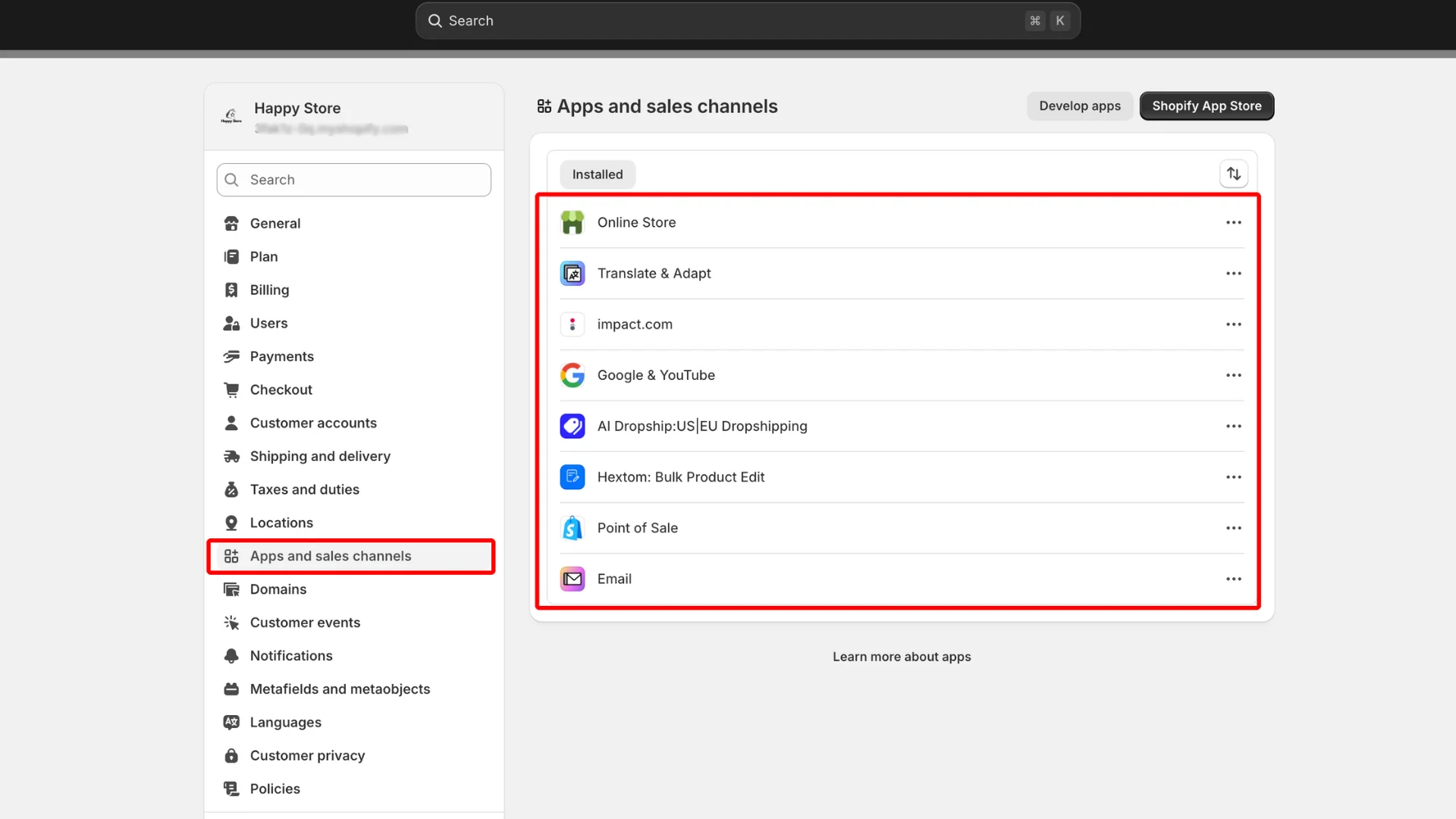 While Shopify's native platform is powerful, installing specialized apps from the Shopify App Store will help you optimize your operations and marketing processes.
Below are some typical solution categories and apps:
| Solution Category | Typical App Name | Core Features to Implement |
|---|---|---|
| SEO Optimization | SEO Manager / Plug in SEO | Automated optimization of title tags, meta descriptions, and fixing broken links. |
| Marketing Automation | Klaviyo / Omnisend | Automating Email Marketing campaigns to nurture and re-engage customers. |
| Reviews & Trust Building | Judge.me / Loox | Collecting and displaying product reviews with real images (Social Proof). |
| Dropshipping Operation | DSers / Spocket | Automating order processing and synchronizing product sources and orders quickly. |
Comprehensive Website Testing
Before officially launching, thoroughly testing the entire website is a crucial step to ensure everything runs smoothly.
You should act as a regular customer to review the entire system:
- Perform test orders to check the stability of the checkout page, shipping cost calculation, and the automated email flow sent to customers.
- Check the display interface on both computers and mobile phones to ensure there are no font errors or layout breakage.
Officially Removing Password Protection and Launching! 🚀
 When everything is ready and you are satisfied with every detail, it's time to open your doors to customers!
To make your website publicly accessible:
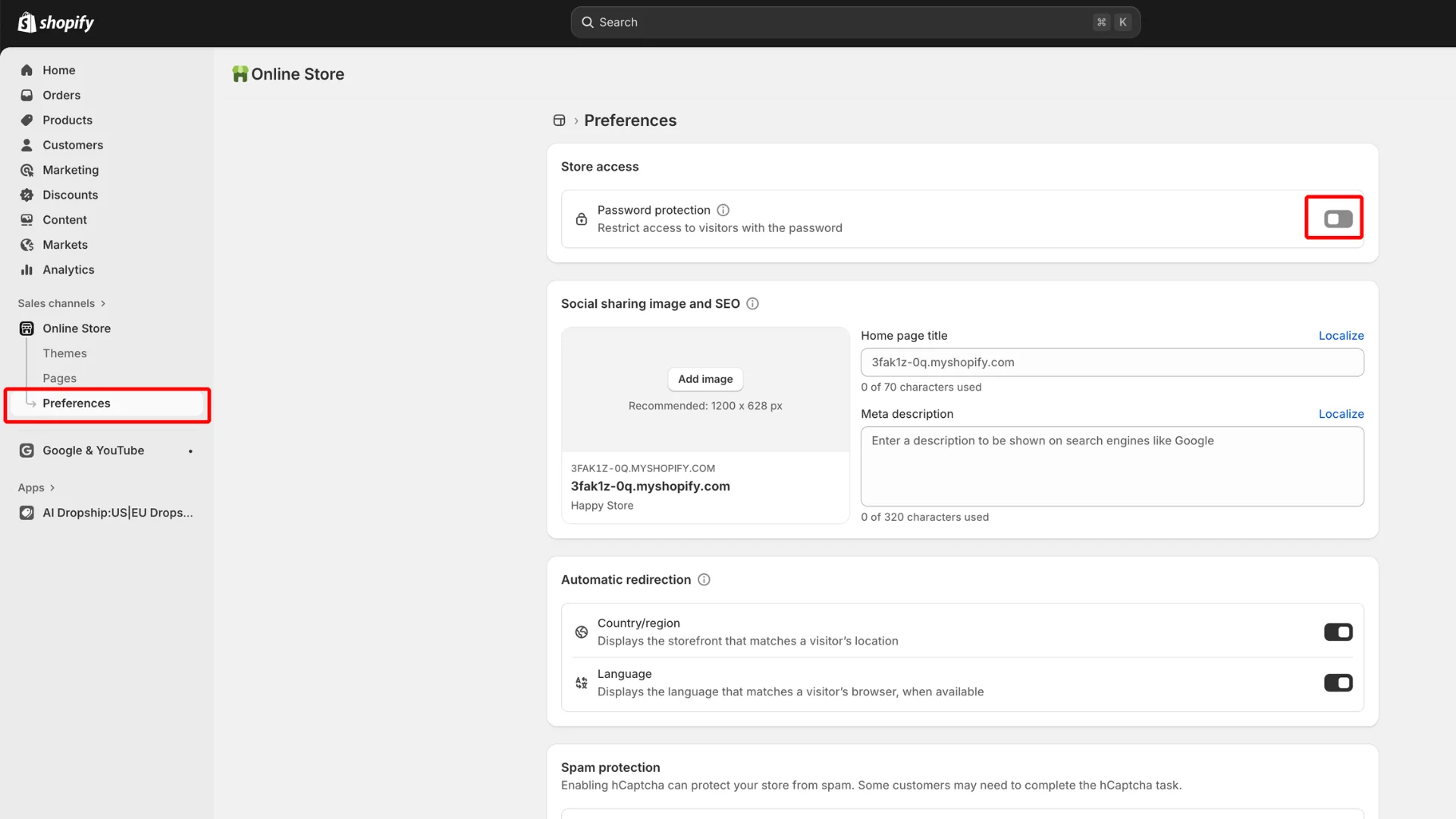
- Go to Settings → Preferences.
- Scroll down to the Password protection section and uncheck the "Restrict access to visitors with the password" box.
- Save the settings. Your website is now officially live on the internet!
Now is the time to deploy communication campaigns, run ads, optimize SEO, and collaborate with influencers to drive traffic to your store.
Conclusion
Building a Shopify store is not complicated if you follow a structured roadmap. From choosing an optimized theme, meticulously synchronizing products, to setting up streamlined payments, Shopify provides all the necessary tools for you to master your online business. Now is a golden opportunity to start your e-commerce journey.
Frequently Asked Questions (FAQs)
1. How much does it cost to maintain a Shopify store?
Shopify's Basic plan starts at $39/month, plus the cost of a domain name and any additional paid apps if you need advanced features.
2. Can I build a Shopify website myself if I don't know how to code?
Absolutely. Shopify is designed with an intuitive drag-and-drop mechanism, 100% beginner-friendly and requires no coding skills.
3. How long does it take to complete a Shopify store?
If you have images and product content ready, a complete beginner can get their website up and running within just 1 to 2 days.
4. Can I do dropshipping on Shopify?
Yes. Shopify's ecosystem connects seamlessly with leading automated product sourcing apps like DSers, Spocket, and many other professional alternatives.
5. Do I need a business license to start?
Not mandatory from day one for small experimental stores, but this will depend on legal regulations and tax policies in the country/region where your business is based as cash flow increases.
Next step
Need a high-converting, fast Shopify theme? VertexTrue can help.
Explore Custom Theme Shopify service →